Add Judges to a Competition
Add the right number of judges, name them, and the app gives each a scoring token.
A judge is a row in the competition's judge list. You set the number of judges, name each one, and the app generates every judge a unique judge token (see Judge links and QR codes).
You need the competition created first.
Steps
- Open the competition: Manage → → Prelim Configuration (or Final Configuration for a final).
- Set Number of Judges to how many you will have. The app adds an empty name slot for each.
- Fill in each Judge name. That is the name shown on the public scoresheet if you publish the named version, and the name next to each QR code. For example, Dana Rivera, Lerato Okafor, Kenji Sato.
- Click Save.
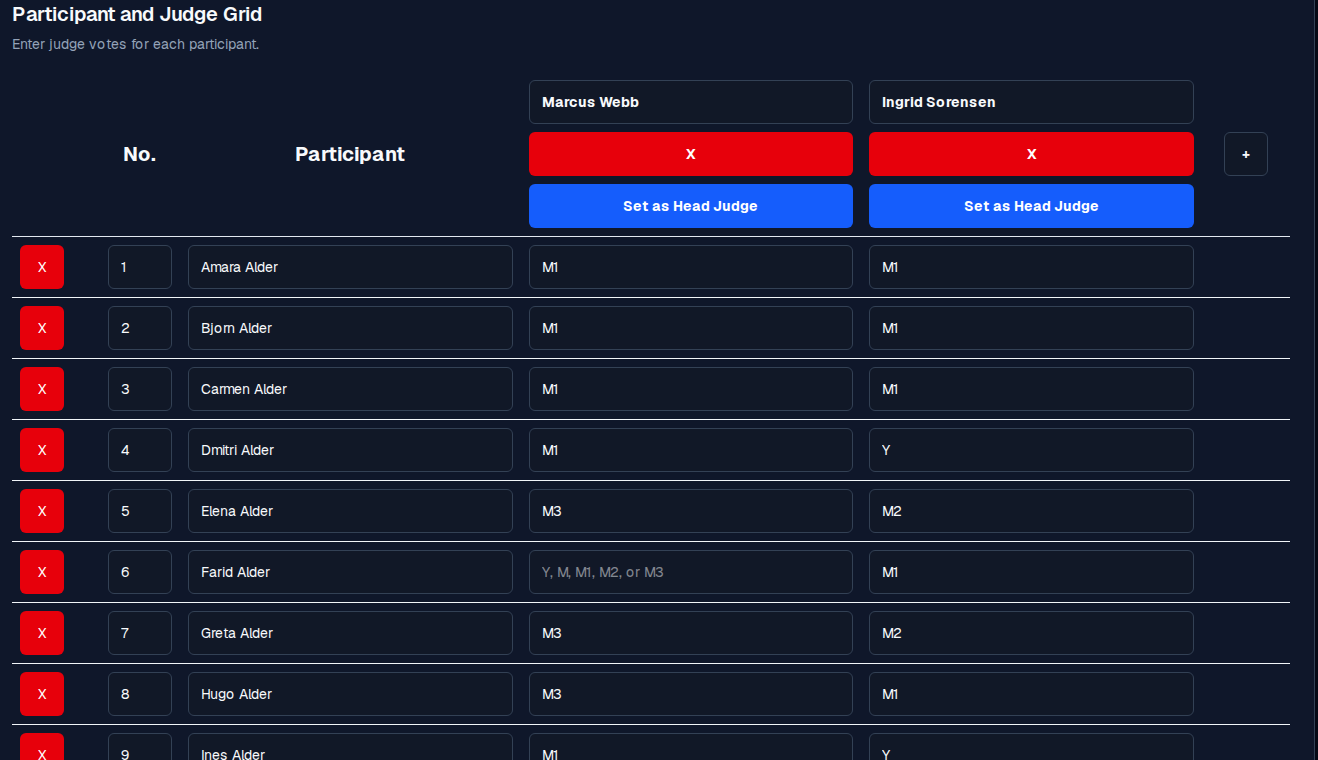
Picking a head judge
Choose one judge as the head judge for tie-break authority. See Set a head judge for the exact control and when to use "tie-break only" mode.
How judges get their tokens
Tokens are generated when you build the scoresheet PDF (see Judge links and QR codes). That PDF prints each judge's name, their token in text, and a QR code that opens their scoring page directly. You never type a token into the app by hand; the PDF is the delivery mechanism.
Reducing the judge count
If you set Number of Judges lower than it currently is, the app asks Reduce judge count? and tells you the consequence: the removed judges and any votes they cast will be permanently discarded. That check is there so votes are never dropped silently.
Common mistakes
- Not saving after naming judges. Names only reach the public scoresheet after Save.
- Forgetting to generate the PDF. Judges cannot score without a token, and the token exists only once the scoresheet PDF has been generated.
- Naming the same judge in two competitions. The name is free text and per-competition, so that is fine. The token, though, is unique per (judge, competition) pair, so the same judge in two competitions holds two different tokens.