Before the event
Add Participants
Create dancers in an event, by hand or from a CSV file.
A participant is a registered dancer (or one half of a couple). Participants live on the event, and are then assigned to one or more competitions.
You need the event in place (see Your event).
Option A: Add by hand (a few dancers)
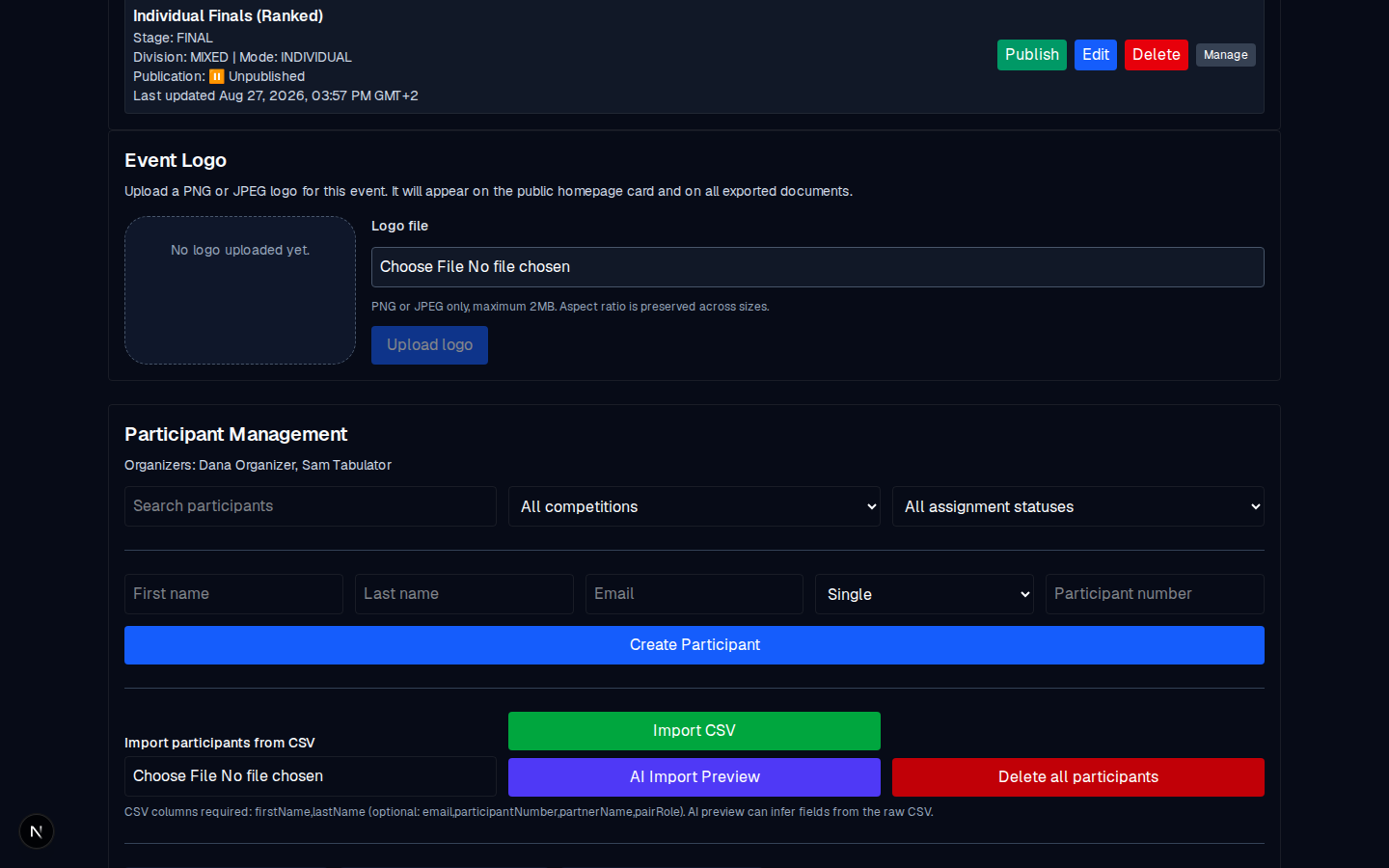
- Open the event: Manage event → → Participant Management.
- In the name row, enter the first and last name, pick the type (Single or Couple), optionally enter a participant number (leave blank to auto-assign), and click Create Participant.
- Repeat for each dancer; the list updates as you go.
Option B: Import from CSV (a full list)
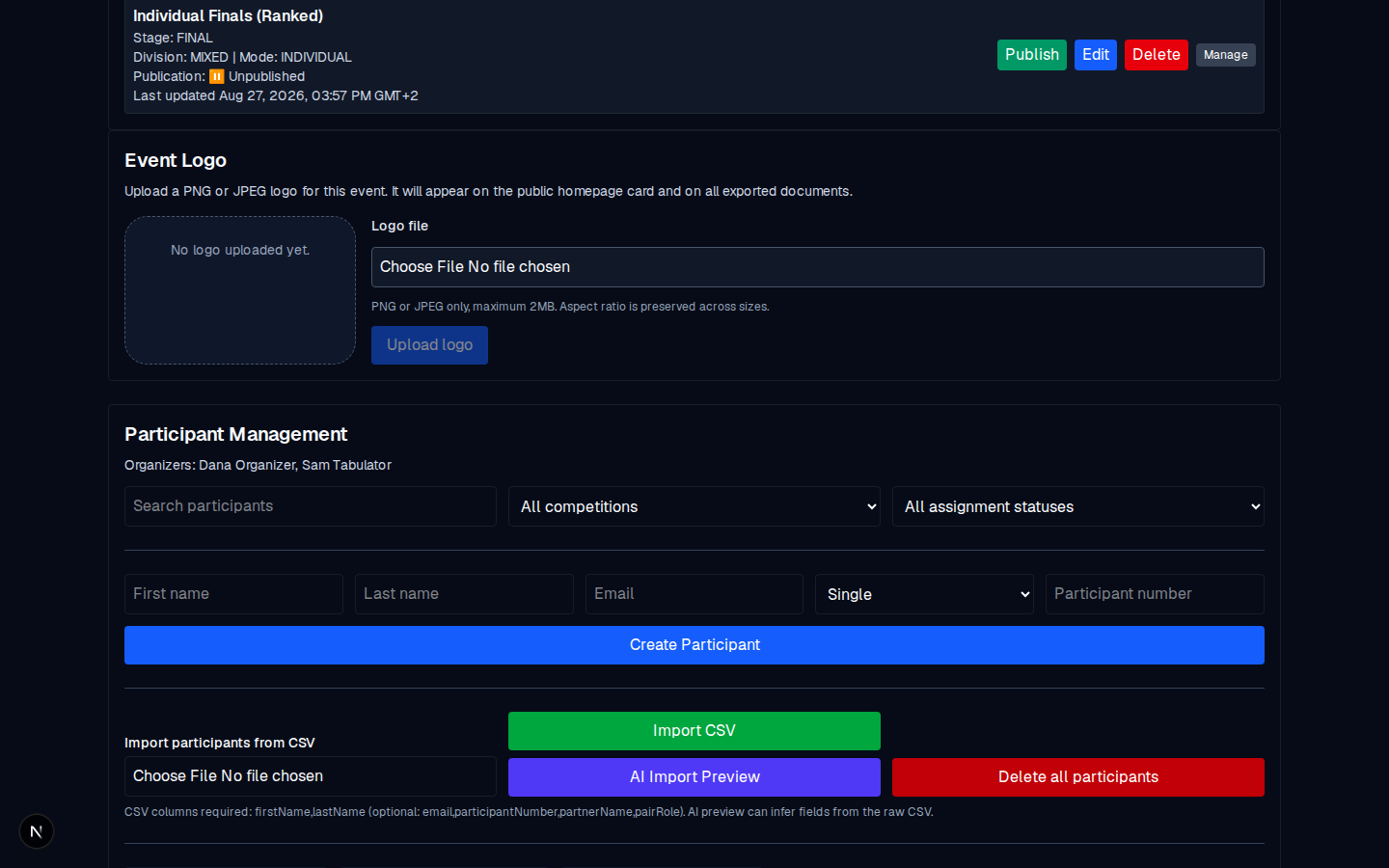
This is the common path for real events. See Import participants from CSV for the exact columns and the mapping step.
Option C: AI import preview (optional)
If you already have the list as a CSV but the columns are messy, the AI Import Preview button can infer the fields for you from the raw file. It is a preview feature: check the table it proposes before you confirm. See AI import.
Common mistakes
- Adding a couple as two Singles. If the two dancers dance as a pair, register them with type Couple and link the partner; they then appear as one row in the scoring grid. See Couples and partners.
- Using the same name twice. The app checks for duplicates per (event, year, first name, last name) and rejects a true duplicate.
- Forgetting to assign them to a competition. A participant can exist on the event and still be missing from a competition's grid. Use Import Assigned Participants in the competition to fix that; see Assign participants.