Advancing competitors
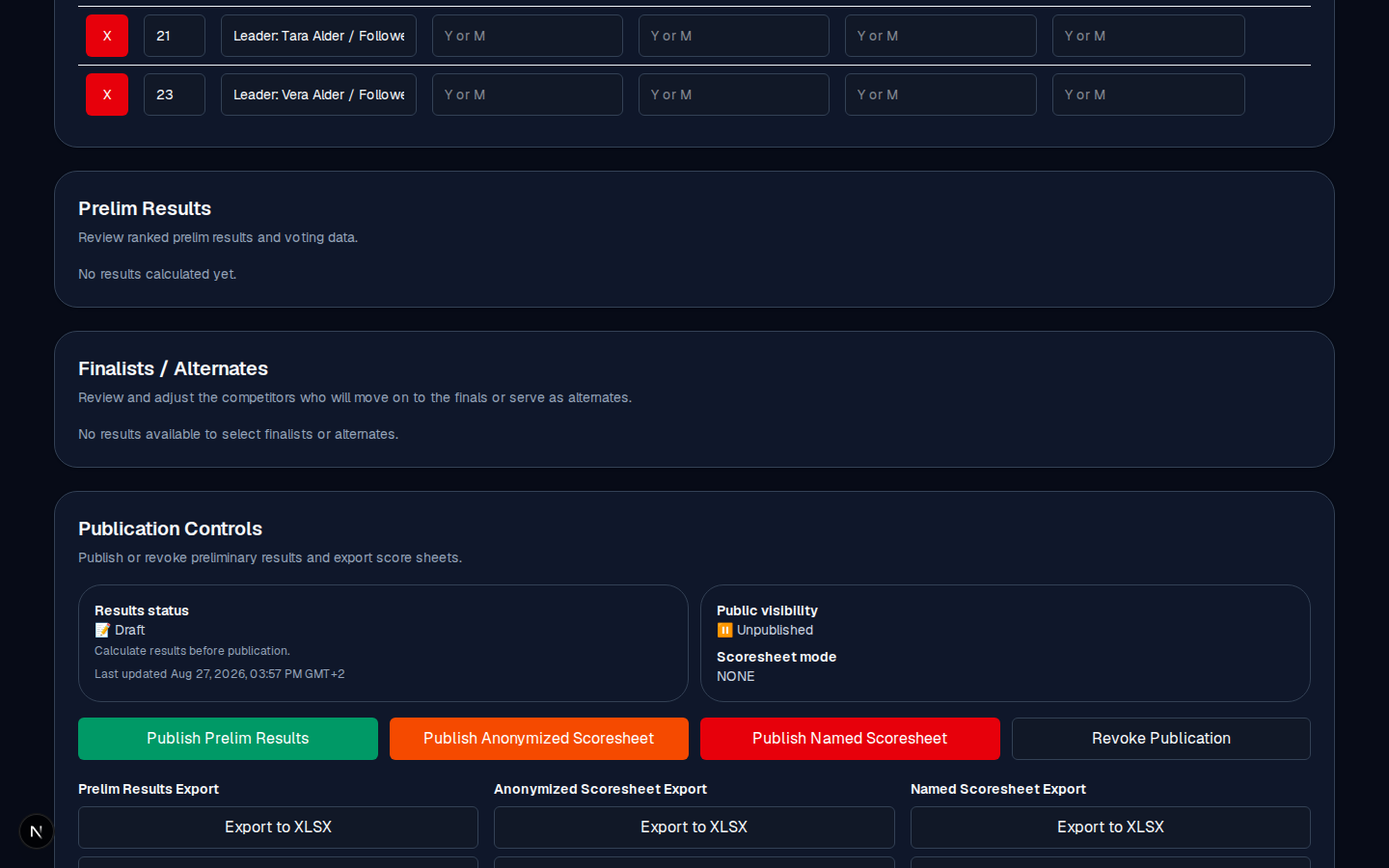
Select Finalists and Alternates
Set the target counts, let the app auto-pick the top rows, and override any selection if you need to.
Once the ranking is in (every judge submitted and Calculate run), you decide which participants advance to the final.
The three tiers
| Tier | What it means |
|---|---|
| Finalist | Advances to the final. |
| Alternate 1 | Jumps in if a finalist cannot dance. |
| Alternate 2 | Second back-up. |
How selection works
- In Prelim Configuration, set Finalists to Select, Alternate 1 to Select, and Alternate 2 to Select. For example, 6 finalists, 1 alternate, 0 alternate-2s.
- Once all judges have submitted and the ranking is computed, the app automatically selects the top rows to match those counts.
- You can override any row: check a box to add a participant to that tier, uncheck to remove them. Once you have edited, the app stops auto-selecting.
- To return to the app's automatic pick, click Reset Selections. It confirms (Reset finalist and alternate selections to automatic (top-ranked participants)?) because it discards your manual edits.
Best practice
- Start with the auto-selection (it is exactly "top N by the ranking").
- Override only where there is a concrete reason: a vote that needs explaining, a misassigned number, a rule-based decision.
- Write down why you overrode. The audit record captures that you did it and when, not the reason.
Common mistakes
- Changing the target counts after auto-selection has run. If you have not edited by hand, the app re-runs the selection to match the new counts; that is intended. If you have edited, the counts do not force a re-pick; the manual selection wins.
- Selecting more finalists than the final expects. The final's participant list is what you feed it, so keep the finalist and alternate counts consistent with what the final is set up for.
- Forgetting alternates for a final that uses them. If the final format includes alternates, select them here now, not later.